I tried many CRM and ERP systems for my small business, and finally chose Hubspot. I like it’s ability to build kanban sales pipelines and have a huge volume of contacts – over 1M records! However beware of inactivity: HubSpot will delete your account after 120 days if inactivity!
The Outlook integration plugin saves smoothly all emails into CRM – brilliant functionality to save time for a small startup!
Here I explain how to make a Kanban sales CRM functionality in Hubspot. On a parralel, this article will teach you how to add new fields and customize your Contacts and Deals
STEP 1: update contact’s profile
So first we will update our contact’s profile and introduce new fields.
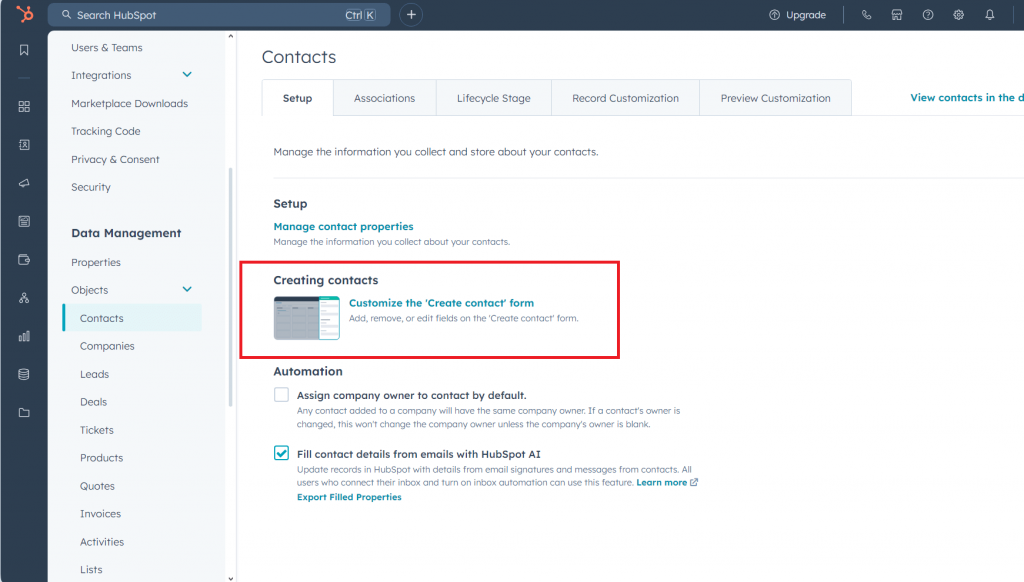
Add the fields that you may need later (i.e. company name, phone number, city etc and also my own fields). Go to:
Upper right corner Gear icon (settings);
On a left choose Dana Management – Objects – Contacts;
Click “Customize the “Create contact’ form;
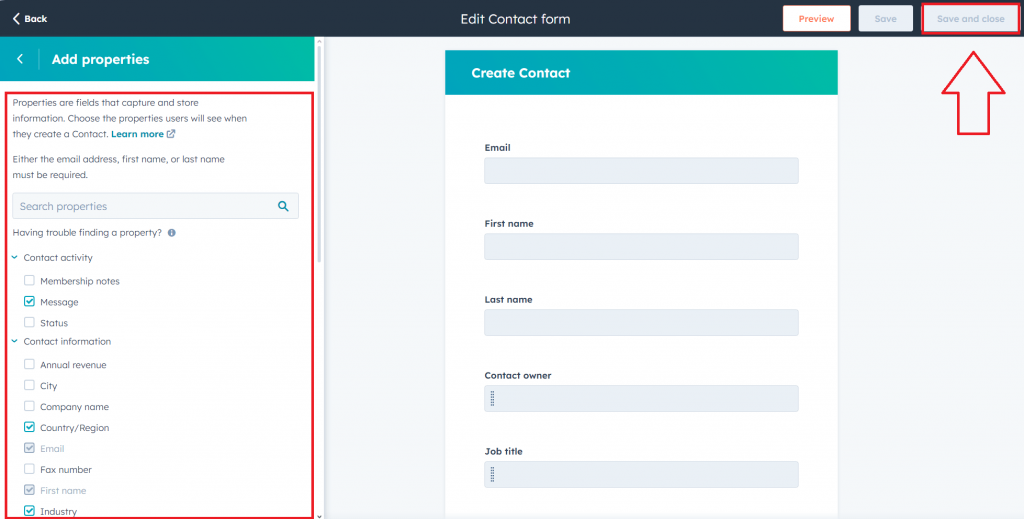
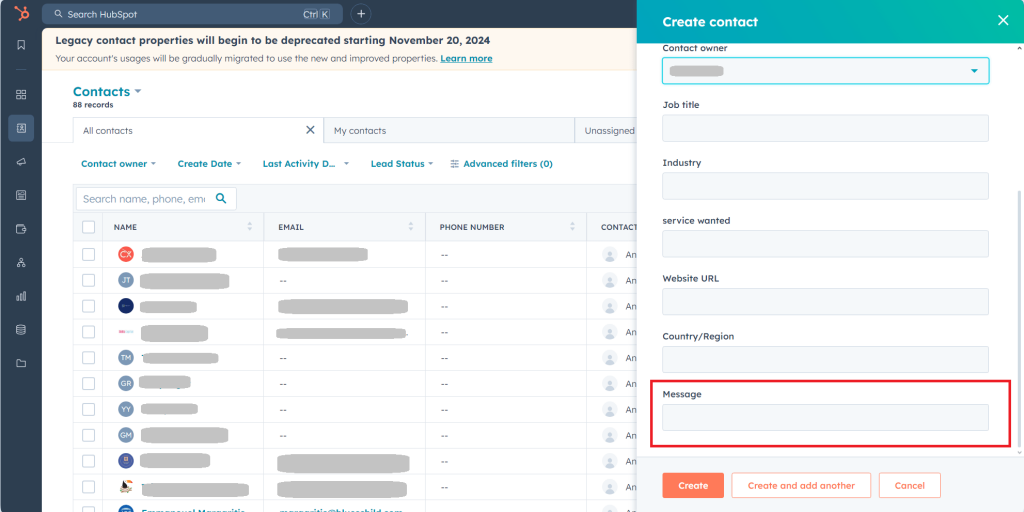
On the left add necessary properties (in my case I am adding “message” field);
If you need to create a custom field for your client profile, go to:
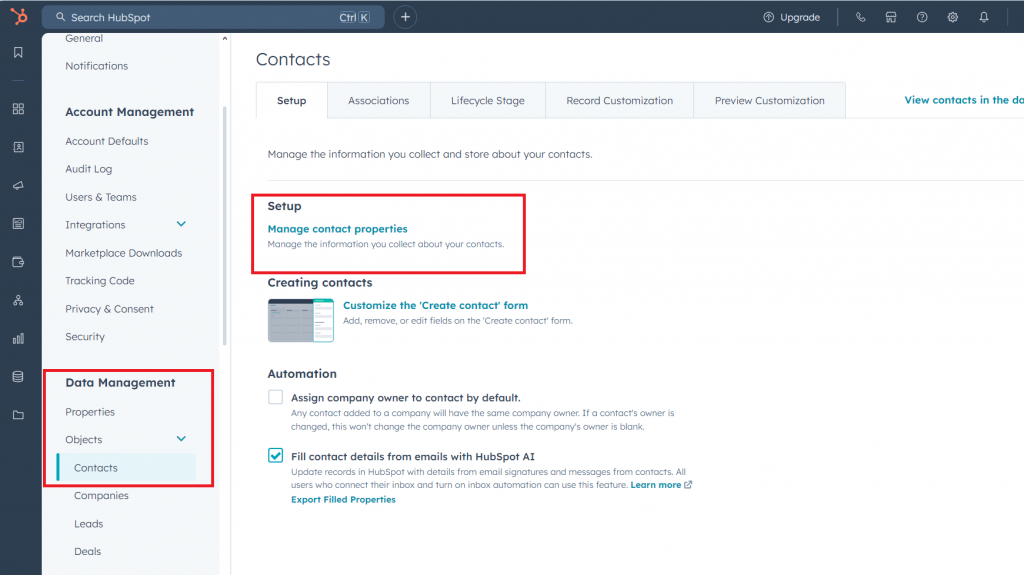
Gear;
Left hand panel: Data Management – Objects – Contacts – Manage Contact Properties
then click “Create Property” (orange button on the right side of the page)
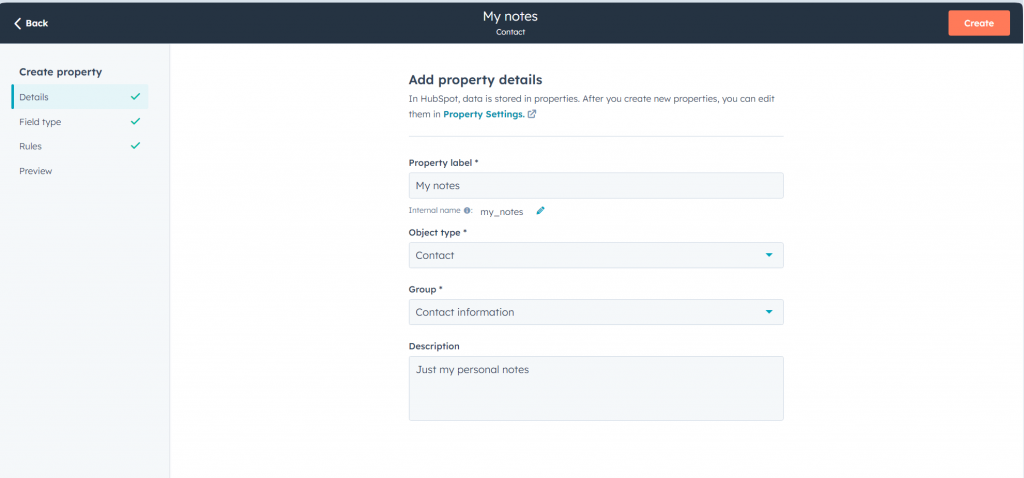
Write property label (the name of your newly created field)
Choose object type (Contact);
Group – Contact Information;
Description – optional;
You won’t be able to create a new property until you complete all fields (left panel), don’t forget to make “field type – Multi line text”
See preview on the left;
If you are satisfied – click “Create”
After you returned back to main view by clicking HubSpot’s logo (upper left corner) you can re-check how your “Create contact” menu looks. In my case I created a new field “Message” and now it appeared in a new contact’s menu:
STEP 2: create a pipeline (kanban board)
Than you need finally create a quick kanban sales board (pipeline). Return back to main view (HubSpot’s logo upper left corner), go to left panel and choose “CRM – Deals”. This is where we do our Kanban Board.
How to customize lists for kanban titles (in our case lists are sales stages):
Gear;
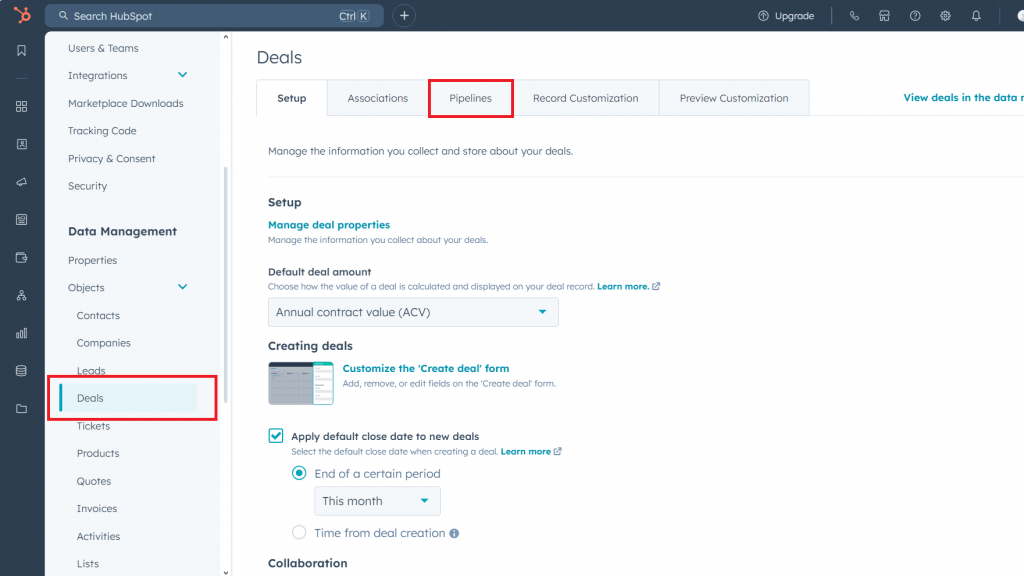
Objects – deals;
Choose “Pipelines” (see screenshot below)
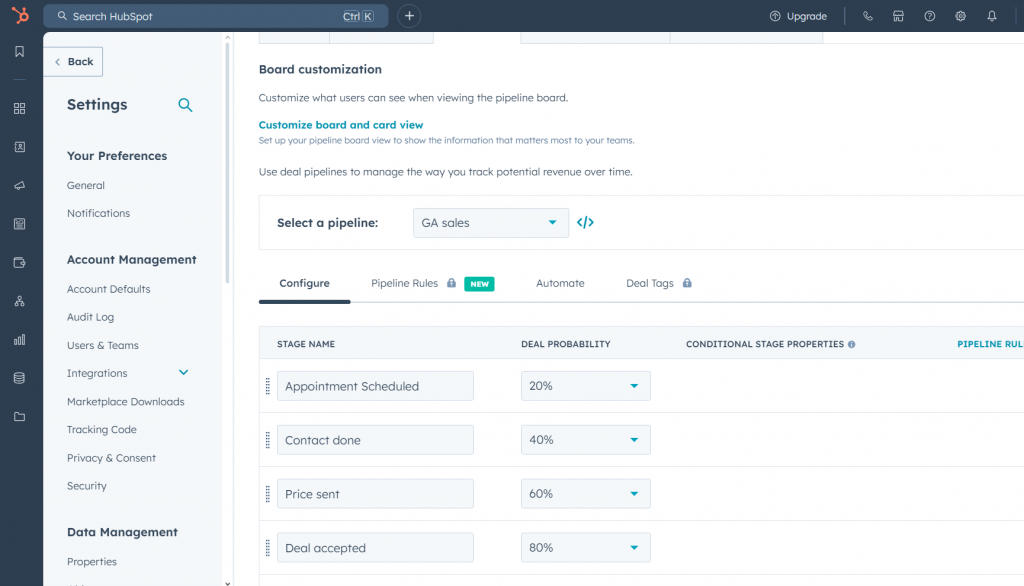
9-10 stages of your sales or lead gen process is pretty enough. In a win probability choose a % of success for each stage.
Now, you can create deals in each contact profile, they will appear in “deals” and you move them between columns depending on their progress.
STEP 3: Fill your Kanban board with deals
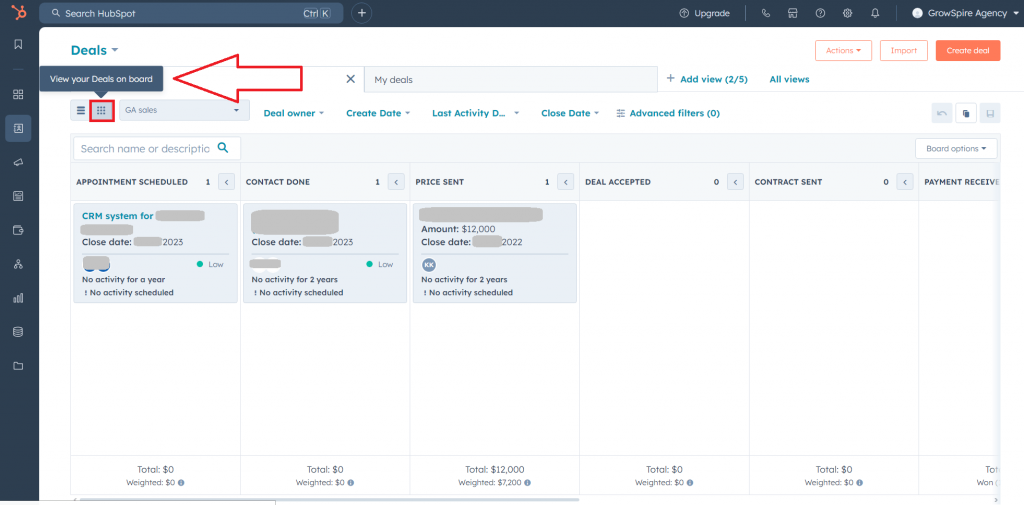
Go CRM – Deals and click “View your deals on board” (see screenshot below).
This is your Kanban board, looks nice!
Find the article useful? Support us by visiting our sponsor:
If your PC is booting or loading applications slow, our choice is Iolo System Mechanic. Click the right banner and get immediate report about your PC’s performance, pace and junk files (wait until it loads!) ➜